




 2022 Top Rated Product
 AVG ANTIVIRUS FREE
Defend your PC against cyberthreats with our award-winning, free antivirus
Download AVG AntiVirus Free for real-time protection against viruses, infected emails, and scam websites plus more.

2024
Top rated product

2024
Best Protection
AVG ANTIVIRUS FREE
Defend your PC against cyberthreats with our award-winning, free antivirus
Download AVG AntiVirus Free for real-time protection against viruses, infected emails, and scam websites plus more.
2024
Top rated product
2024
Best Protection

AVG AntiVirus Free
Download powerful, award-winning free antivirus protection.
2024
Top rated product
2024
Best Protection
AVG AntiVirus Free
Download powerful, award-winning free antivirus protection.
2024
Top rated product
2024
Best Protection

6 Layers of security

30+ years experience

160+ awards & accolades

8 tools and features
Award-winning virus protection for your PC

Email Shield
Be alerted to infected emails or attachments long before you click on them.

Real-time updates
We push the latest version of our antivirus to you as soon as it’s available.

Phishing protection
Avoid scam web pages and infected links associated with malware and phishing.


Simple. Strong. Secure
Stop viruses and other malware before they do damage, with AVG’s free computer virus protection software. AVG’s interfaces and tools are also clear and easy-to-use, so you’ll never waste any time navigating confusing menus.
NEW!Firewall
Stop malicious, unauthorized traffic, like malware and hacking attempts from accessing your PC’s network system.
HackCheck
Get an immediate alert if your email has been compromised in a hack, and expert advice on what to do to remedy the situation and protect yourself.
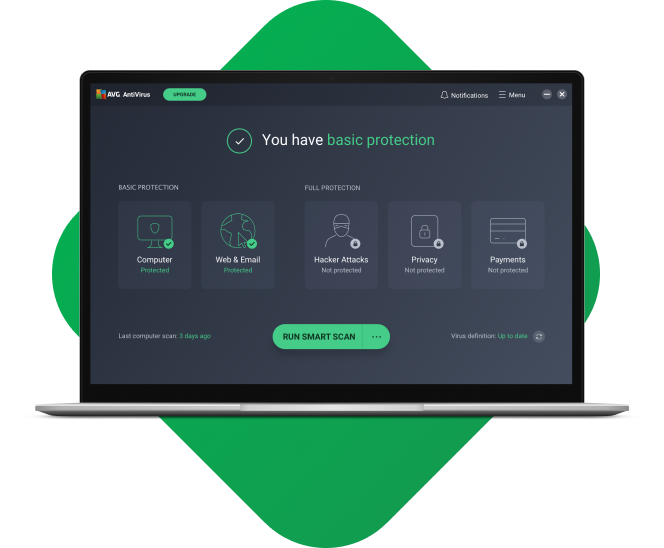

AVG Internet Security
Upgrade to advanced antivirus software: AVG Internet Security

Enhanced anti-ransomware
Don’t let cybercriminals hold your most sensitive files to ransom.

Webcam protection
Prevent online snoops from watching you or your family via your webcam.

Intelligent firewall
Keep hackers away with an enhanced firewall.

Anti-hacker security
Block criminals from hijacking your PC and controlling it remotely.

World-class PC security software
We’ve added 25 new accolades in the past two years to the hundreds we have won since we started in 1991. Our top marks means you know you’re in good hands.

2024
Best Protection
2024
Top Rated product

2023
Malware Protection

Trusted by experts, enjoyed by consumers
Each month, we stop over 1.5 billion cyberattacks all around the globe thanks to an unrivaled threat detection network, which is why professionals and amateurs alike love our free and paid antivirus protection.


This antivirus suite has one of the cleanest user interfaces on the market today and remains an excellent choice for advanced users who wish to fully customize their threat monitoring system.


AVG AntiVirus FREE performs well in independent testing, and PC users are very happy with it. If you're looking for a simple way to beef up the security on your PC, the AVG AntiVirus Free is a great choice. If you want to protect all of your devices from malicious software, no matter who is using them, then AVG Internet Security can give you added peace of mind.


In lab tests, AVG AntiVirus detected 100% of all viruses it had prior knowledge of, and 99% of all viruses it had no prior knowledge of (i.e. “zero-day” attacks by new viruses),
AVG AntiVirus offers impressive protection for free software. Add to that the user-friendly interface and excellent support, and this product is a no-brainer for Mac, PC, and Android users.
How to install
- First, download the installation wizard using the button at the top of the page.
- Once it’s downloaded, double-click the installation wizard to run it.
- Follow on-screen application instructions.
- You’re done! Run your first scan and start securing your PC today.
For more detailed instructions, please go to our installation support page.
Usage
For personal and family use only. Not for business or commercial use.
System requirements

Windows 11, Windows 10, 8, and 7
(Windows XP can be found here)

MacOS 10.10 (Mavericks)
or above

Android 5.0 (Lollipop, API 21)
or above

iOS 10.0 or above
Languages
For Windows: Chinese (simplified), Chinese (traditional), Czech, Danish, Dutch, English, French, German, Hungarian, Indonesian, Italian, Japanese, Korean, Malay, Polish, Portuguese (Brazil), Portuguese (Portugal), Russian, Serbian, Slovak, Spanish, and Turkish.
For Mac: English only.
For Android: Arabic, Chinese (simplified), Chinese (traditional), Czech, Danish, Dutch, English, Finnish, French, German, Greek, Hebrew, Hindi, Hungarian, Indonesian, Italian, Japanese, Korean, Malay, Norwegian, Polish, Portuguese (Brazil), Portuguese (Portugal), Russian, Serbian, Slovak, Spanish, Swedish, Thai, Turkish, Ukrainian, and Vietnamese.
For iOS: Arabic, Chinese (traditional), Czech, Dutch, English, French, German, Hindi, Italian, Japanese, Korean, Polish, Portuguese (Brazil), Russian, Spanish, Thai, Turkish, and Vietnamese.
You may still be wondering…
What makes AVG AntiVirus FREE one of the best free antivirus software options?
There are various options open to users who want to download the best free antivirus software. AVG has been protecting users for more than 30 years and offers a free download of antivirus software for PC, Mac, Android, and iPhone/iPad. AVG also offers free protection against spyware as well as free protection against Trojan horse malware.
How does AVG AntiVirus FREE protect against viruses and other threats?
New threats are always emerging, but AVG’s free virus protection keeps you safe. AVG even offers protection against spyware, webcam threats, ransomware, rootkits, hackers, and more. While built-in PC protection like Windows Defender might stop some of the threats you’ll face, it’s crucial to have antivirus software like AVG’s to make sure you don’t leave yourself vulnerable to more sophisticated threats.
Why does my PC need antivirus software?
You need antivirus software if you want to protect your PC against viruses, malware, ransomware, and the variety of other online threats out there.
Windows Defender will guard against standard types of malware, but it won’t match the comprehensive security you’ll get with a powerful, third-party antivirus solution like AVG AntiVirus FREE for PC. Now known as Microsoft Defender, Windows Defender doesn’t offer enough protection against phishing attacks on all browsers, nor does it perform quite as highly as AVG AntiVirus FREE in leading independent tests.
How will AVG AntiVirus FREE affect my computer's performance?
It's very simple to download and run a free virus scan to check for viruses and other malware on your computer. AVG offers a free virus scanner and malware removal tool which takes seconds to install. All you have to do is:
- Click download to download the installer file
- Click on the downloaded installer file
- Follow the simple instructions to complete the installation of your free AVG virus scan tool
What is a computer virus?
You can check out our guide for how to manually get rid of viruses from your computer, or you can download a great virus removal tool like AVG AntiVirus FREE and start protecting your PC in real time today. Whether you're working on a Windows 10 desktop device or laptop, AVG AntiVirus FREE automatically detects and blocks incoming viruses and other malware while scanning and removing any existing malware.
How do I get rid of a virus?
A computer virus is a type of malware that infects your computer often through malicious downloads or deceptive links. Viruses are designed to spread themselves across files and programs as well as across networks to other devices. Indications that you may have a virus on your computer include slowdowns, invasive pop-ups, crashes, and other issues.
Get expert advice on security, privacy, and device performance

How to Find and Clean Viruses on Android Phones or iPhones
Learn how to remove viruses from your Android phone and iPhone with our expert guide. Scan and remove mobile malware, then protect against future threats.

Microsoft Defender vs. Full-Scale Antivirus
Microsoft's antivirus tool protects against some malware and other threats, but is Windows Defender good enough compared to other AV solutions?

Fake Virus Warnings: How to Spot and Avoid Them
Concerned about fake virus alerts? Learn how to detect fake virus warning pages and pop-up malware and avoid a real attack.

What is a Trojan Horse? Is it Malware or Virus?
In computing, a Trojan horse is a decoy that hides malware. Find out what a Trojan is and how to detect and protect against this sneaky type of attack.

How to Scan and Remove Malware From Your Router
Did you know that your router may be vulnerable to malware? Learn how to scan and remove malware from your router with our expert guide.

Fake Website Check: How to Check If a Website Is Safe or Trying to Scam You
Website safety checks are vital to staying safe online, but how can you tell if a site is secure? Use a website safety checker and follow these tips.

iPhone Calendar Virus: What Is It and How Do You Get Rid of It?
Learn how to get rid of iPhone calendar viruses and how to stop receiving spam event invitations to your iPhone calendar.

EternalBlue Exploit: What Is It and Is It Still a Threat?
The EternalBlue exploit — is it still a threat? This NSA exploit is still causing problems on the web. Learn how to defend against EternalBlue.

What Is the Meaning of Clickbait and Is It Dangerous?
How does clickbait work and what are the dangers? Discover how to identify a clickbait website and see examples in our guide.
Privacy | Report vulnerability | Contact security | License agreements | Modern Slavery Statement | Cookies | Accessibility Statement | Do not sell or share my info | Subscription details | | All third party trademarks are the property of their respective owners. | © 2024 Gen Digital Inc. All rights reserved.